Search Transp Improvement Pgm
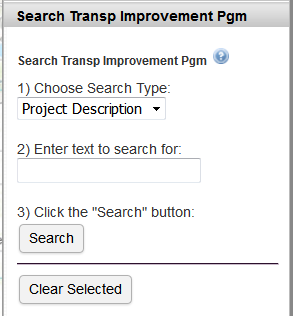
Perform a search:
- Select the search method (Project Number or Project Description).
- Enter the text to search for in the input box.
- Click the "Search" button to perform the search.
Tips:
- The Project Number search will find any project where the project number begins with the text. For example, entering the text "42" will find projects having project number "42", "425", "42999", etc.
- The Project Description search will find any project where the project description contains the text. For example, entering the text "Intersection" will find projects having project description "Intersection Improvements", "Armenia Avenue at Busch Blvd. Intersection Improvements", etc.
Search results:
If projects are found that match the search criteria, a pop-up box will open containing the list of project(s).
- The project list can be sorted by clicking on the column heading.
- Clicking on a row will zoom the map to the highlighted project (shaded yellow). Note: The other project in the list are shaded blue.
- Right-clicking on a row will open a detailed report for the project.
- Close the pop-up box containing the project list by clicking the "x" in the upper right-hand corner.
Click the "Clear Selected" button to remove the selected projects (i.e., yellow shading) from the map.